Every littleWEBZ stick has this Help guide built in, in plain English. Here it is on the web too, so you can read it before you buy or when your phone is not on the littleWEBZ Wi-Fi.
School Games and Arcade Games: Letter Slash, Number Match and Shape Monster for young kids, plus Brick Blaster, Star Defenders and Poker Night with pretend chips.
Calendar Cookbook and Shopping List: The family calendar, family recipes with serving sizes and cook mode, the 5,000-page recipe library and the shared shopping list.
Encyclopedia Books and Saved Websites: About 290,000 Simple English Wikipedia articles and more than 4,000 Wikibooks on the stick, with no internet.
Wi-Fi Backup and Settings: Change the Wi-Fi name or password with the Parent PIN and the button, download a backup and manage family members.
The Signal Finder: Hold the button 3 seconds: the stick becomes a silent Wi-Fi and Bluetooth meter that helps you look for hidden gadgets.
What stays private and what does not, fixes for common problems, good-to-know facts and credits.
Privacy and safety
littleWEBZ makes its own Wi-Fi with its own password. Only phones that know the password can join.
Nothing goes on the internet. Everything is on the memory card inside the stick.
In the littleWEBZ website, private diary entries need their owner's PIN.
Changing the Wi-Fi and resetting a diary PIN both need the Parent PIN and a press of the stick's button. So a kid cannot do them, and nobody can do them from far away.
A diary PIN reset erases that person's private entries. A reset never opens someone's diary.
But the PIN only works in the website. Anyone who holds the stick can read everything on its card with a computer, private diary entries too. So keep the stick in a place your family trusts.
If something goes wrong
Problem
Try this
My phone cannot find the littleWEBZ Wi-Fi
Check the stick is plugged in and shows the eyes. Press its button and scan the left code. Stand in the same room.
The page does not open
Make sure your phone is on the littleWEBZ Wi-Fi, not your home Wi-Fi. Then type 192.168.4.1. If your phone switched back to another Wi-Fi because there is "no internet", tell it to stay connected.
"littleWEBZ did not answer"
The stick may be unplugged, or your phone left its Wi-Fi. Check both, then pull down on the page to reload it.
"littleWEBZ is busy, try again"
Wait a few seconds and tap again. Saving can take a moment when many phones use it. If the stick's screen says "Copying files", wait until it is done.
I forgot the Wi-Fi password
Press the button on the stick. The password is under the left code.
I forgot my diary PIN
See Diary: "I forgot my PIN". A parent types the Parent PIN, then presses the stick's button. Your private entries are erased.
I forgot the Parent PIN
Use the recovery code on the card from the box. See The Parent PIN.
A kid chose the Parent PIN first
Use the recovery code on the box card to set a new Parent PIN.
The screen says "memory card missing"
Push the card in until it clicks. If that does not help, unplug the stick for 10 seconds and plug it in again.
The screen is dark or stuck
Unplug the stick for 10 seconds and plug it in again. Your things are saved on the card.
The trivia game seems stuck
The host may have paused it, or the host's phone is asleep: another team can tap Take over as host.
The stick is a Signal Finder and I want littleWEBZ back
Hold the button 3 seconds, or unplug it and plug it in again.
Good to know
littleWEBZ saves as you go. Unplugging is safe. The stick also protects files that were being saved at that moment.
There is no "factory reset" button. If you ever need a fresh start, the seller can reload the stick for you.
The backup can be downloaded, but there is no button to put a backup back on the stick yet.
Unplugging the stick ends the waiting time after wrong diary PINs (not after wrong Parent PINs).
Photos are made smaller on your phone before they are saved (1280 pixels wide). Very big files (over 6 MB) are refused.
The trivia game has 100 questions to start with. More question packs can be added to the memory card.
littleWEBZ works best with up-to-date phones and web browsers.
Credits
The encyclopedia is the Simple English Wikipedia (wikipedia.org). The books and the recipe library come from Wikibooks (wikibooks.org). Volunteers wrote them. Thank you!
You may share their text if you name where it came from. The rules for that are called "CC BY-SA 4.0".
Each trivia fact is a short quote from the encyclopedia page named under it.
The maker names in the Signal Finder come from a public list kept by the IEEE.
This is part of the littleWEBZ Help guide. The same guide is built into every stick: tap the ❓ Help tab.
Hold the button 3 seconds: the stick becomes a silent Wi-Fi and Bluetooth meter that helps you look for hidden gadgets.
Signal Finder
The Signal Finder turns the stick into a silent radio meter. Use it to check a room, like a hotel room or a rental, for hidden gadgets that send Wi-Fi or Bluetooth signals, such as hidden cameras or tracking tags.
While it is a Signal Finder, the stick is not littleWEBZ: no family Wi-Fi, no website. Your family's things are safe on the card. Hold the button 3 seconds, or unplug the stick, and it is littleWEBZ again.
Start and stop
Plug the stick into a power bank so you can carry it around.
Wait for the eyes, then hold the button 3 seconds. The screen says "Signal Finder".
To stop, hold the button 3 seconds again, or unplug it.
Reading the meters
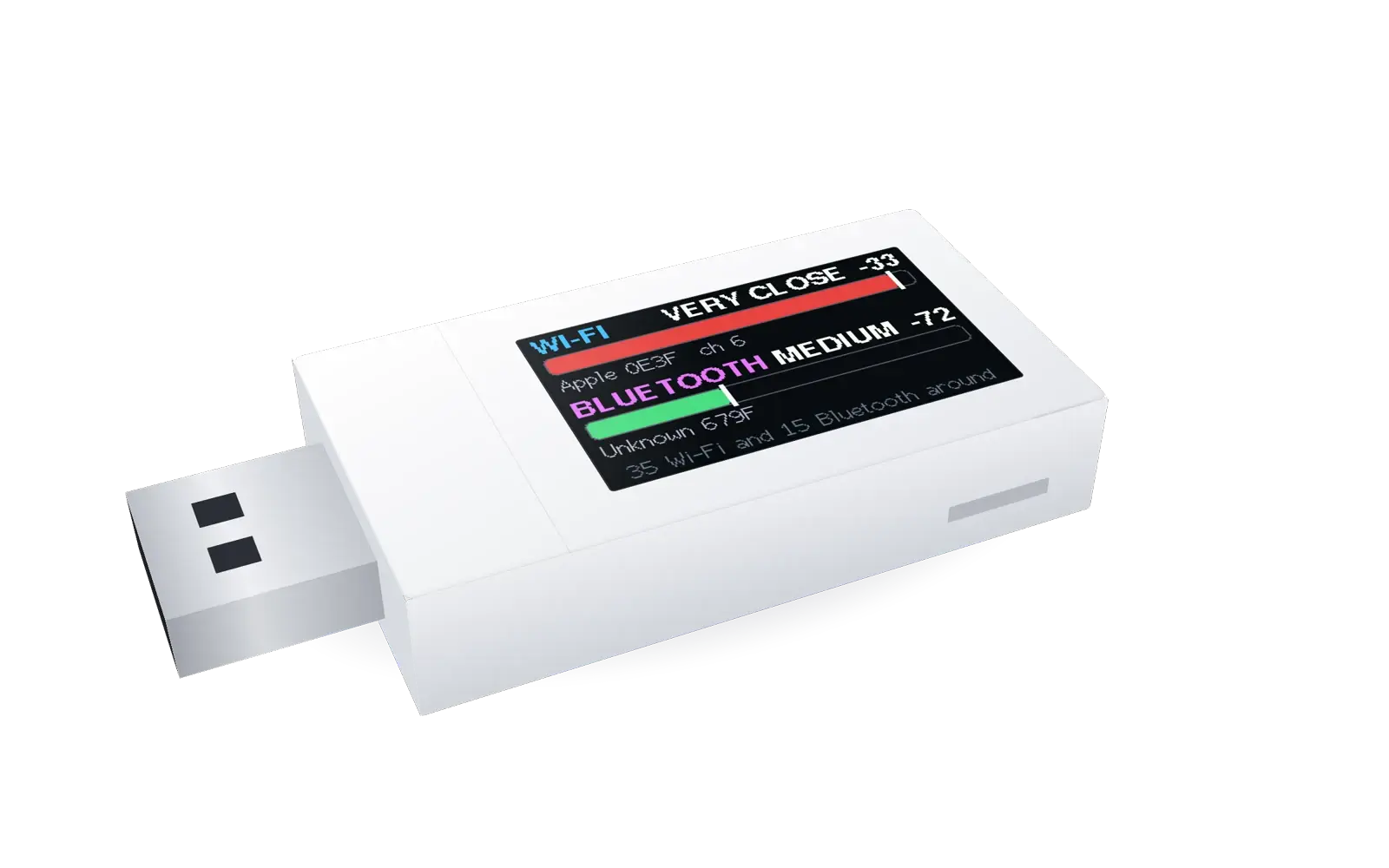
There are two meters: WI-FI on top and BLUETOOTH below.
A longer bar means a stronger signal. Green is weak, yellow is medium and red is strong.
The word tells you how close: FAR, MEDIUM, NEAR or VERY CLOSE. The number is the signal strength in dBm: −30 is very strong, −90 is very weak.
The thin white line is the highest level of the last few seconds. A gadget that is quiet for 3 seconds slowly drops, and after 30 seconds of silence it is forgotten. It helps you notice when you walked past the strongest spot.
Under each meter you see which gadget it follows. You see the maker, if the stick knows it, and the last 4 characters of its address, like "Espressif 3F2A". Wi-Fi gadgets also show their channel ("ch 6"). "Private" means the gadget hides its maker. "Unknown" means the maker is not on the stick's short list.
The bottom line takes turns: how many Wi-Fi and Bluetooth gadgets are around, then a reminder of the buttons.
Warning words
BUSY
This Wi-Fi gadget is sending a lot of data. Video cameras send a lot.
CAM MAKER
Its maker also makes security cameras.
TRACKER?
This Bluetooth gadget looks like a tracking tag (like an AirTag, Tile or SmartTag).
These words are clues, not proof. A TV can be busy, and a phone can look like a tracker. Use them to decide what to look at more closely.
The button in Signal Finder
What you do
What happens
Press once
The meters follow the next gadget, from strongest to weakest. A ">" shows you picked it. After the last one, they go back to the strongest. On the radar picture, a press goes back to the meters.
Press twice quickly
Starts a turn to find the direction (see below).
Hold 3 seconds
Back to littleWEBZ.
Finding the direction: the turn
Pick the gadget you want with single presses.
Hold the stick flat against your chest, screen toward you.
Press twice quickly. Then turn slowly to your right (clockwise), one full circle, in about 10 seconds. The ring on the screen shows how far you are. Always turn to the right: turning left mixes up the directions.
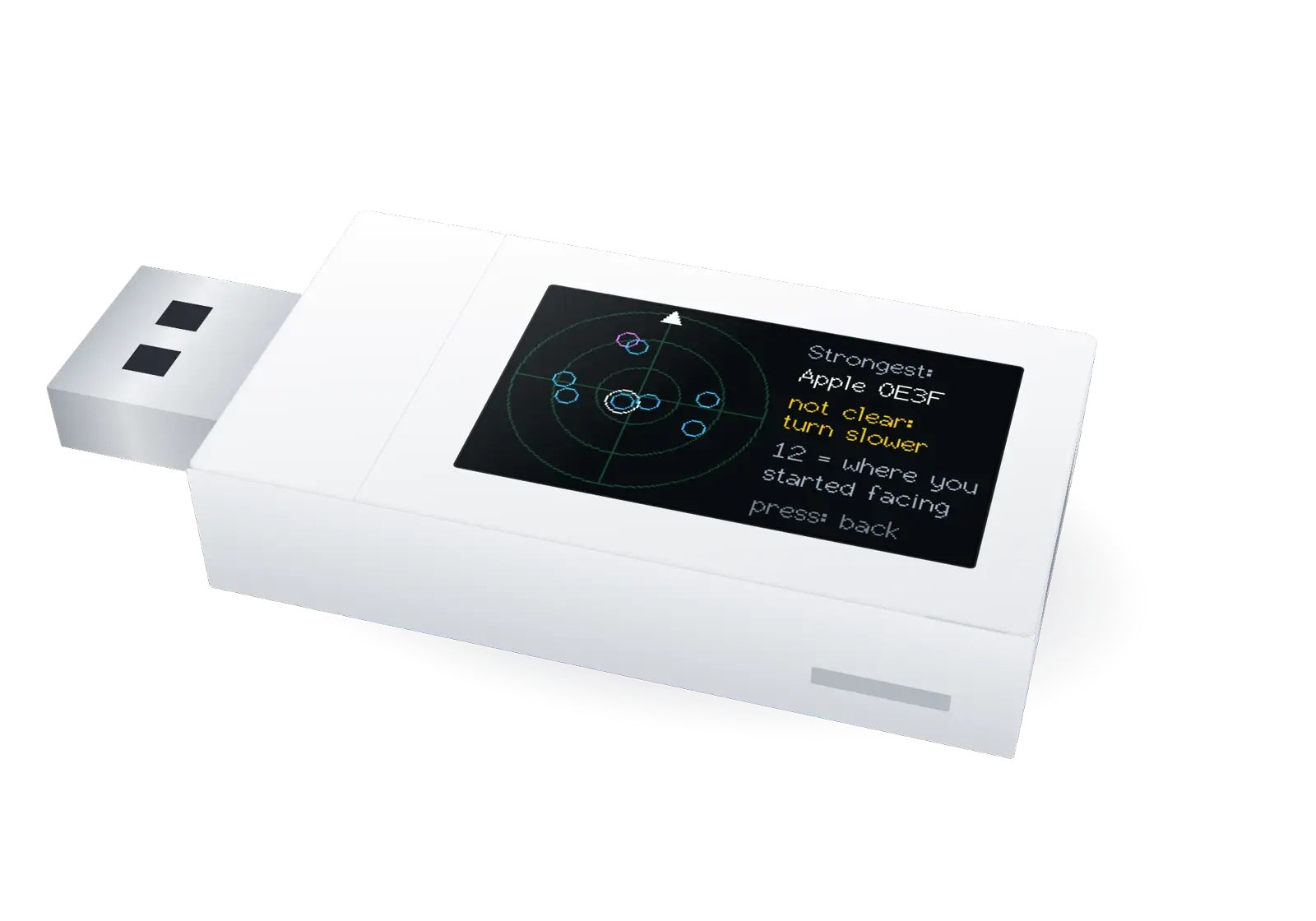
The stick then shows a radar picture. The arrow at the top (12 o'clock) is the way you faced when you started. Each dot is a gadget (up to the 8 strongest): blue for Wi-Fi, pink for Bluetooth. The ringed dot is the one the meters follow. A dot closer to the middle has a stronger signal.
On the right, the stick names the strongest gadget and tells you where it is, like "at 4 o'clock". That means: from where you started, turn to where the 4 is on a clock face.
This works because your body blocks part of the signal. The signal is strongest when you face the gadget.
A filled dot has a clear direction. An empty dot, or "not clear: turn slower", means the stick could not tell. Try again, turning slower and more evenly.
Hot and cold
After the turn, walk the way it showed and watch the meter. The bar grows as you get closer, like the game "hot and cold". The white line shows the highest level, so you notice when you pass the closest spot. Check that area: smoke detectors, clocks, chargers, lamps, picture frames, plants and air vents.
What it cannot do
It only hears 2.4 GHz Wi-Fi and Bluetooth Low Energy, the kind used by tags, watches and most small gadgets. Some newer gadgets use 5 GHz Wi-Fi, and some older ones use "classic" Bluetooth. The stick cannot hear those.
It follows at most 64 Wi-Fi and 64 Bluetooth gadgets at a time, the strongest ones.
A camera that only saves video on its own memory card, or that uses a cable, sends no signal. The stick cannot find it.
Gadgets that use very fast Wi-Fi (like laptops and new phones) look quieter than they are, so they may not show BUSY. Simple gadgets, like most small cameras, are measured well.
Walls, furniture and people change signals. Directions are rough, about one eighth of a circle.
The Signal Finder helps you look. It cannot promise that a room is safe. If you find something worrying, do not touch it: tell the hotel or the police.
The Signal Finder only listens. It sends nothing, does not join any network, and does not read anyone's messages. It only notes which gadgets are near and how strong their signals are. It forgets everything when you leave Signal Finder.
The radar picture after a slow turn: each dot is a gadget.
This is part of the littleWEBZ Help guide. The same guide is built into every stick: tap the ❓ Help tab.
Change the Wi-Fi name or password with the Parent PIN and the button, download a backup and manage family members.
Wi-Fi, backup and settings
These are in the 👪 Family tab.
Family members
Add, edit or remove family members. Removing someone needs the Parent PIN. It does not delete what they posted. Renaming someone keeps all their posts, recipes and diary. If the person has a diary PIN, it is needed to rename them.
The settings also show the Wi-Fi name, how many phones are connected and how full the memory card is.
Change the Wi-Fi name or password
Type a new name (up to 31 characters), a new password (8 to 63 characters), or both. Leave the password empty to keep the old one.
Tap Change Wi-Fi and type the Parent PIN. The stick's screen says "PRESS: new Wi-Fi".
Press the button on the stick within one minute. The stick restarts with the new Wi-Fi.
The stick shows the new codes for one minute. Every phone must now join the new Wi-Fi.
Backup
Tap Download a backup of all lists and diaries to save a file on your phone. It has the text of your messages, drawings list, diaries, calendar, shopping list, family list, game scores and family recipes. It does not have the photos or the drawing pictures themselves. Your own private diary entries are included only if you opened your diary with your PIN on that phone first.
This is part of the littleWEBZ Help guide. The same guide is built into every stick: tap the ❓ Help tab.
About 290,000 Simple English Wikipedia articles and more than 4,000 Wikibooks on the stick, with no internet.
Encyclopedia
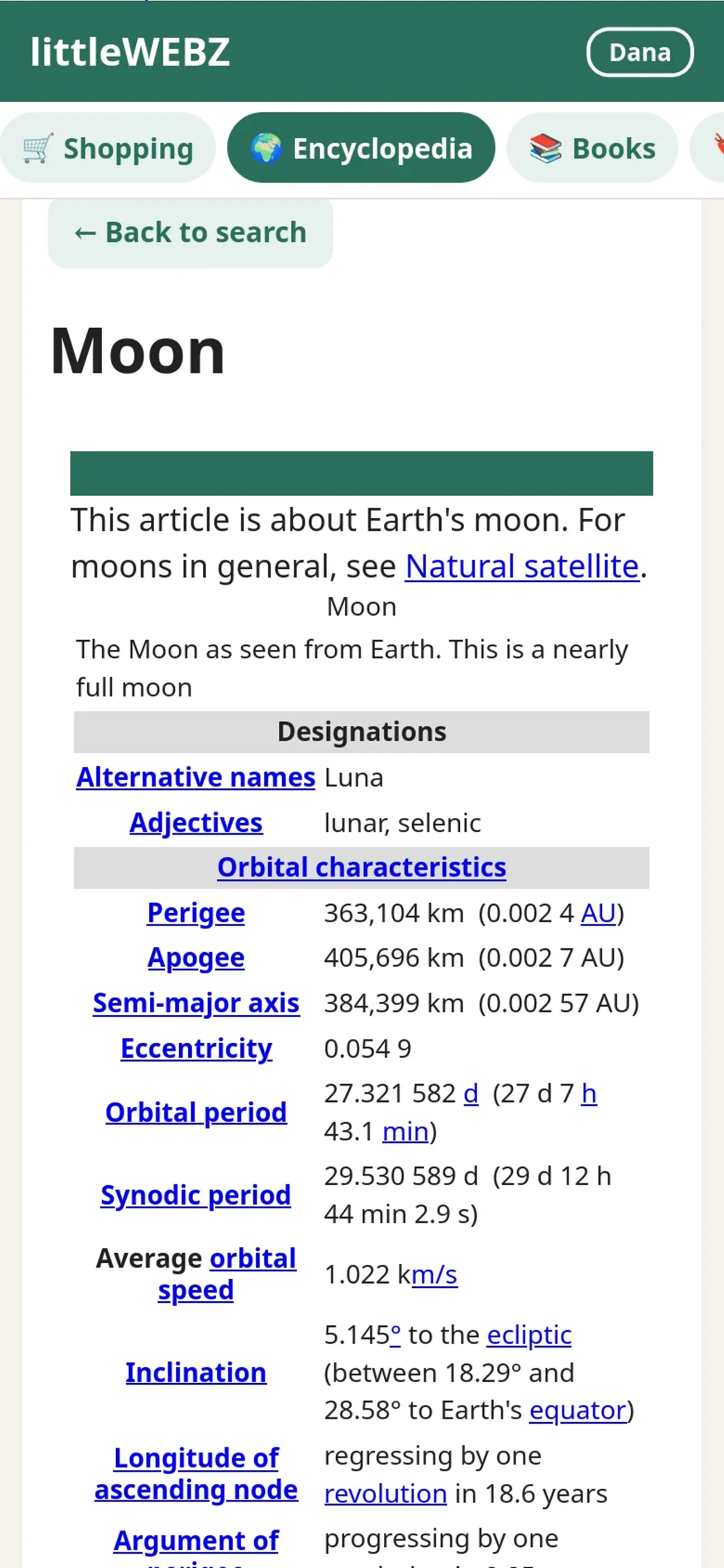
The Simple English Wikipedia is on the stick: about 290,000 articles in easy English. Type the start of a title and tap it, or tap Random article to learn something new. Blue words in an article open other articles. The articles have no pictures.
Books
All of English Wikibooks is on the stick: more than 4,000 free books about school subjects, languages, science, computers, hobbies and more. Search the names of all the pages (type how a name starts), filter the list of books, or open Wikijunior for books made for kids. The green bar at the top of a book page takes you back to littleWEBZ.
Saved websites
Copies of websites can be put on the memory card from a computer, to read without the internet. They show up here.
Only put websites you trust on the card. A saved website runs inside littleWEBZ like littleWEBZ itself.
This is part of the littleWEBZ Help guide. The same guide is built into every stick: tap the ❓ Help tab.
The family calendar, family recipes with serving sizes and cook mode, the 5,000-page recipe library and the shared shopping list.
Calendar
Tap a day to see what is on it. To add something, type what is happening, pick a time and who it is for, then tap Add. Birthdays of family members show by themselves. The list under the calendar shows what is coming up. You can delete what you added.
Cookbook
Family recipes
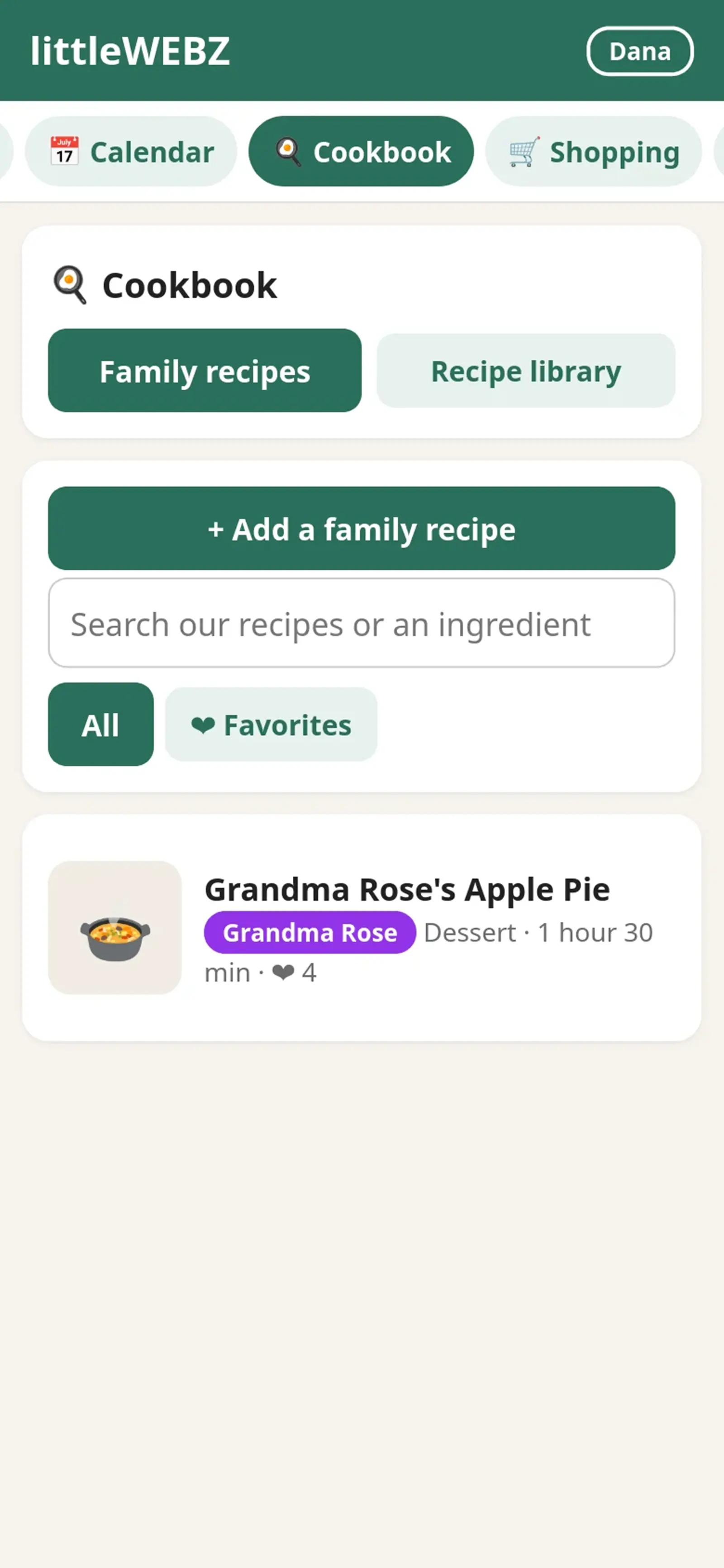
Tap + Add a family recipe. Type the name, the ingredients (one per line) and the steps (one per line). Add a photo of the dish if you like.
In the ingredients, a line that ends with a colon, like "For the sauce:", becomes a small heading.
You can also add notes and a cooking time. You can edit or delete your own recipes. Tap ❤ on a recipe to make it a favorite.
Search by name or ingredient. Filter by type (Breakfast, Dinner and so on) or by ❤ Favorites.
Open a recipe and use + and − next to "Serves" to cook for more or fewer people. The amounts change for you.
Tick the things you already have. Then tap Add what we don't have to Shopping. They show on the shopping list with the recipe's name.
🔥 Cook mode shows one step at a time in big letters and keeps your screen on while you cook.
Recipe library
About 5,000 cookbook pages from Wikibooks are on the stick: recipes, ingredients and cooking tips. Type the start of a dish's name, or tap 🎲 Surprise me. On a recipe page, tap the yellow ⭐ Save recipe button at the top to copy it into your family recipes. Then you can change it to make it your own.
Shopping list
Type something and tap Add. When you have it, tap it to tick it off. Ticked items move to Got it (tap again to un-tick). Tap Clear ticked to remove all ticked items. Everyone sees the same list, so whoever is at the store knows what to buy.
This is part of the littleWEBZ Help guide. The same guide is built into every stick: tap the ❓ Help tab.
Letter Slash, Number Match and Shape Monster for young kids, plus Brick Blaster, Star Defenders and Poker Night with pretend chips.
School games
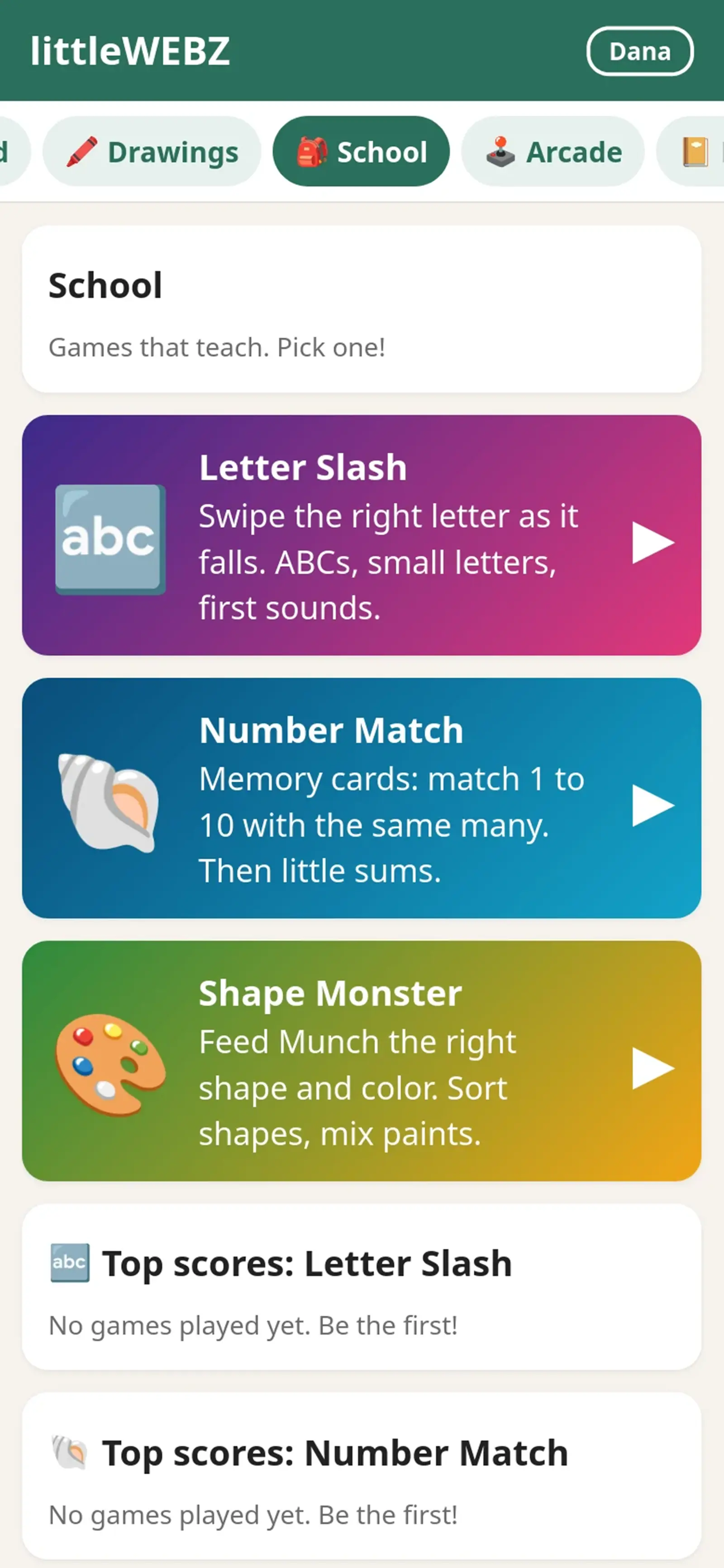
Learning games for young kids. Each one has levels, and each level gives 1 to 3 stars. The School page shows everyone's stars.
🔤 Letter Slash: letters fall from the top. Swipe through the right one. The levels go through ABC order, mixed letters, big and small letters, and first sounds (🍎 starts with A). Arcade mode gets faster and faster, with hearts.
🐚 Number Match: a memory card game. Match a number with the same number of things, and later solve little sums.
🎨 Shape Monster: feed Munch the monster the right shape and color, sort shapes and mix paints.
Every game has Easy and Hard on its start screen.
The phone can say the letters and words out loud. The sound button turns sound on or off.
Arcade games
🧱 Brick Blaster: bounce the ball to smash every brick. Catch power-ups: wide paddle, lasers, fireball, extra balls, slow ball, catch and extra life. 12 stages.
🚀 Star Defenders: fly your ship and stop the waves of aliens. Every 5th wave has a big boss.
🃏 Poker Night: Texas Hold'em against 3 computer players. Everyone starts with 1,000 pretend chips. There is never any real money. The 💡 helper shows your hand and your chance to win. The ? button shows which hands win.
The best scores of each person show on the Arcade page.
This is part of the littleWEBZ Help guide. The same guide is built into every stick: tap the ❓ Help tab.
Post notes and photos, draw with your finger, and keep a private diary with its own PIN.
Message board
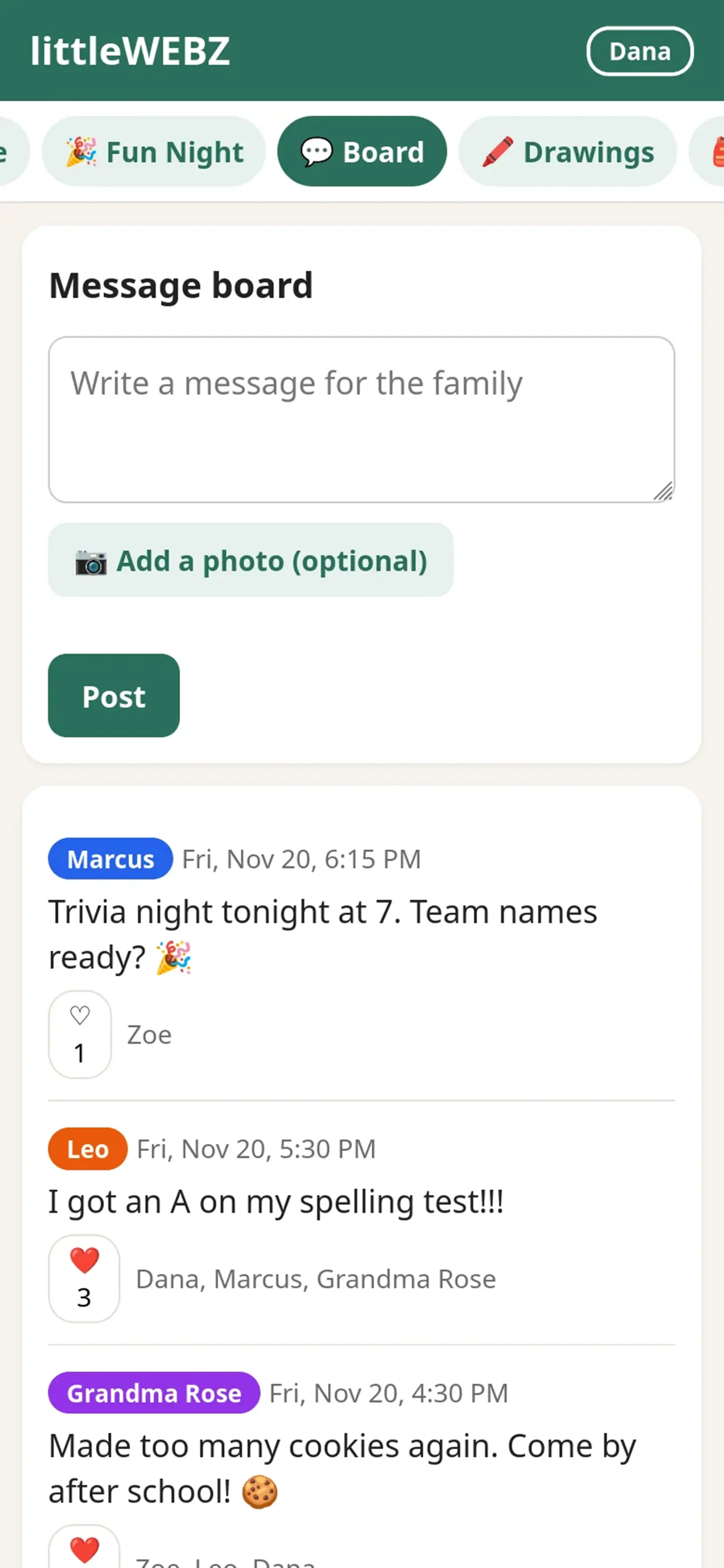
Write a note for the whole family and tap Post. You can add a photo from your phone. Tap the heart ♡ to like a message. You can delete your own messages. The board shows the newest 500 messages. Older ones are kept on the card but not shown.
Drawings
Draw with your finger. Pick a color and a brush size. White is the eraser. Undo takes back the last line, and Clear starts over. Tap Put it on the wall to share your picture with the family. Everyone can add hearts. The wall shows the newest 500 drawings.
Diary
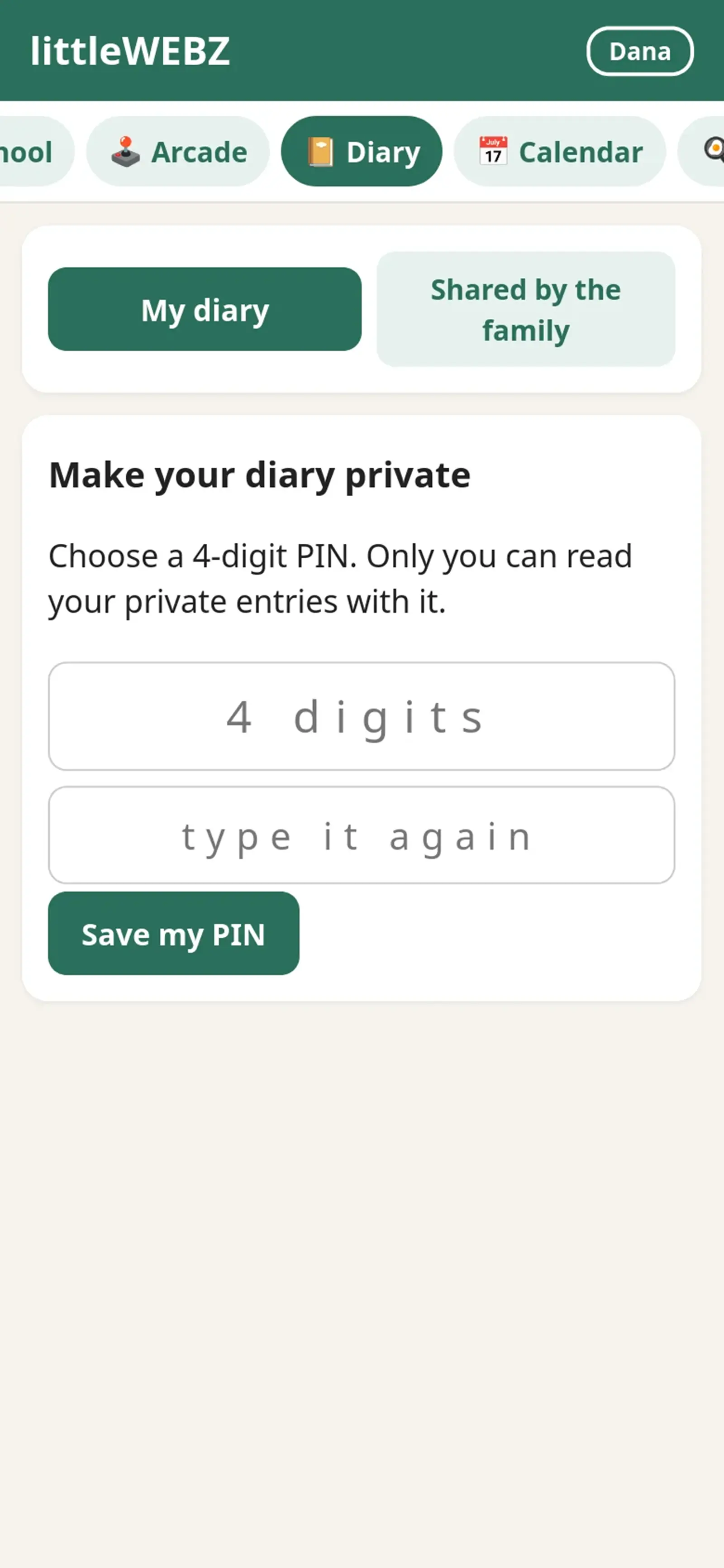
The first time, choose a 4-digit PIN. You need it to open and write in your diary. Nobody else can read your private entries.
When you write an entry, you can choose to share it. Shared entries show under Shared by the family for everyone.
You can add a photo, and you can edit or delete your own entries.
If you type a wrong PIN 5 times, you must wait 30 seconds. Each new wait is twice as long, up to about one hour.
The phone remembers your PIN until you close the browser or tap Switch person.
Forgot your PIN?
Tap I forgot my PIN. Choose your new PIN and type it two times.
Ask a parent to type the Parent PIN.
The stick's screen says "PRESS: reset PIN of" and your name. Press the button on the stick within one minute. Now your new PIN works.
A reset erases your private entries. That way nobody, not even a parent, can use a reset to read your diary. Your shared entries stay.
This is part of the littleWEBZ Help guide. The same guide is built into every stick: tap the ❓ Help tab.
Live trivia for up to 4 phones: start a game, rounds, jokers, the Wildcard, the host and the scoreboard on the stick.
Family Fun Night
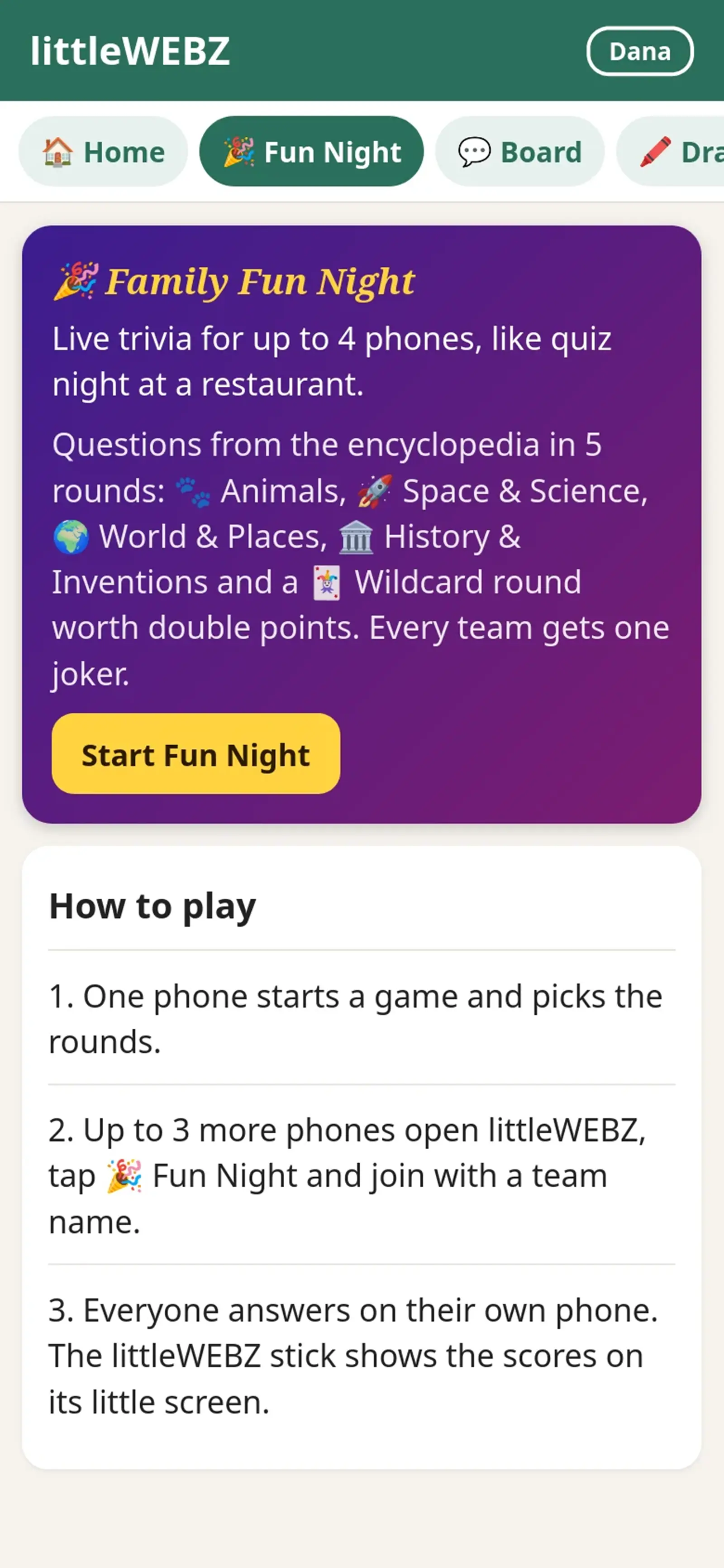
A live trivia game for up to 4 phones (4 teams), just like trivia night at a restaurant. Every team answers on its own phone. Each answer comes with a short fact from the encyclopedia on the stick.
Start a game
One person opens 🎉 Fun Night and taps Start a game. That phone is the host.
Pick a team name and a team color. Choose the rounds, how many questions per round (3, 5 or 10) and the time for each question. Pick 45 seconds for young players.
Tap Open the game for the other phones.
On the other phones: open littleWEBZ, tap 🎉 Fun Night, then Join the game.
When all teams are in, the host taps Start the game.
Playing
There are up to 5 rounds: 🐾 Animals, 🚀 Space & Science, 🌍 World & Places, 🏛️ History & Inventions and the 🃏 Wildcard. The host can leave some out. Each Wildcard question mixes two topics and counts double.
Each round starts with a title screen. It starts by itself after 30 seconds.
Read the question and tap A, B, C or D. Your answer is locked in: you cannot change it.
When every team has answered (or time runs out), all phones show the right answer and a short fact from the encyclopedia for 12 seconds.
A right answer is worth 10 points (20 in the Wildcard round).
Joker: each team gets one joker per game. Play it on a round's title screen, before the round starts. It doubles your points for that round. A joker in the Wildcard round makes each answer worth 40!
The scores show between rounds. At the end, the winner gets confetti. If two teams have the same points, the team that answered right faster wins.
The host
The host can start each round sooner, show the answer early and go to the next question. The game also moves on by itself, so nobody has to wait.
The ☰ menu lets the host pause and resume, or end the game. To remove a team, tap the ✕ next to its name before the game starts.
If the host's phone is asleep for 15 seconds, any other team can tap Take over as host.
At the end, the host can tap Play again. The next game uses new questions first.
A phone that falls asleep does not hold up the others. Wake it up and it is back in the game.
Anyone can leave with ☰ › Leave the game. After the game has started, the team's score stays on the board, but a team that left is placed last. A team that comes back with the same name gets its points back.
When the game is full (4 teams), other phones can still watch the scores. The 🔊 button turns the sounds on or off. The screen stays on during a game.
The game lives in the stick's memory. Unplugging the stick, or switching it to the Signal Finder, ends the game for everyone. A game nobody touches for 30 minutes ends by itself.
This is part of the littleWEBZ Help guide. The same guide is built into every stick: tap the ❓ Help tab.
How the 6-number Parent PIN works, the recovery code on the box card, and how family members, names and colors work.
The Parent PIN
The first person to set up littleWEBZ chooses the Parent PIN. So a parent should set it up first.
Kids can use everything else. Only the Parent PIN can:
change the Wi-Fi name or password,
reset someone's diary PIN,
remove a family member, or change someone else's name or details.
For the Wi-Fi and a diary PIN reset, someone must also press the button on the stick. So the PIN alone is not enough, and the stick alone is not enough.
Change the Parent PIN
Go to 👪 Family, then Change the Parent PIN. Type the Parent PIN you have now, then the new one two times.
Forgot the Parent PIN?
Each stick has its own recovery code. It is printed on the card that came in the box. Go to 👪 Family, then Forgot the Parent PIN? Type the recovery code, then a new Parent PIN two times.
Keep the box card somewhere safe, away from the kids. Anyone with the recovery code can set a new Parent PIN.
If you type a wrong Parent PIN or recovery code 5 times, you must wait 30 seconds. Each new wait is twice as long, up to about one hour. Unplugging the stick does not end the wait.
You and your family
Each person picks a name and a color. Your color shows next to everything you post.
Each phone remembers who uses it. To change, go to 👪 Family › Switch person.
Only the person who posted a message, drawing, diary entry, calendar event or recipe can change or delete it. Everyone can add hearts.
The shopping list belongs to everyone: anyone can change it. Anyone can add a family member. You can change your own name and details. Only a parent can remove someone or change someone else.
Add a birthday, and littleWEBZ shows it on the calendar and on Home when it is close.
Home
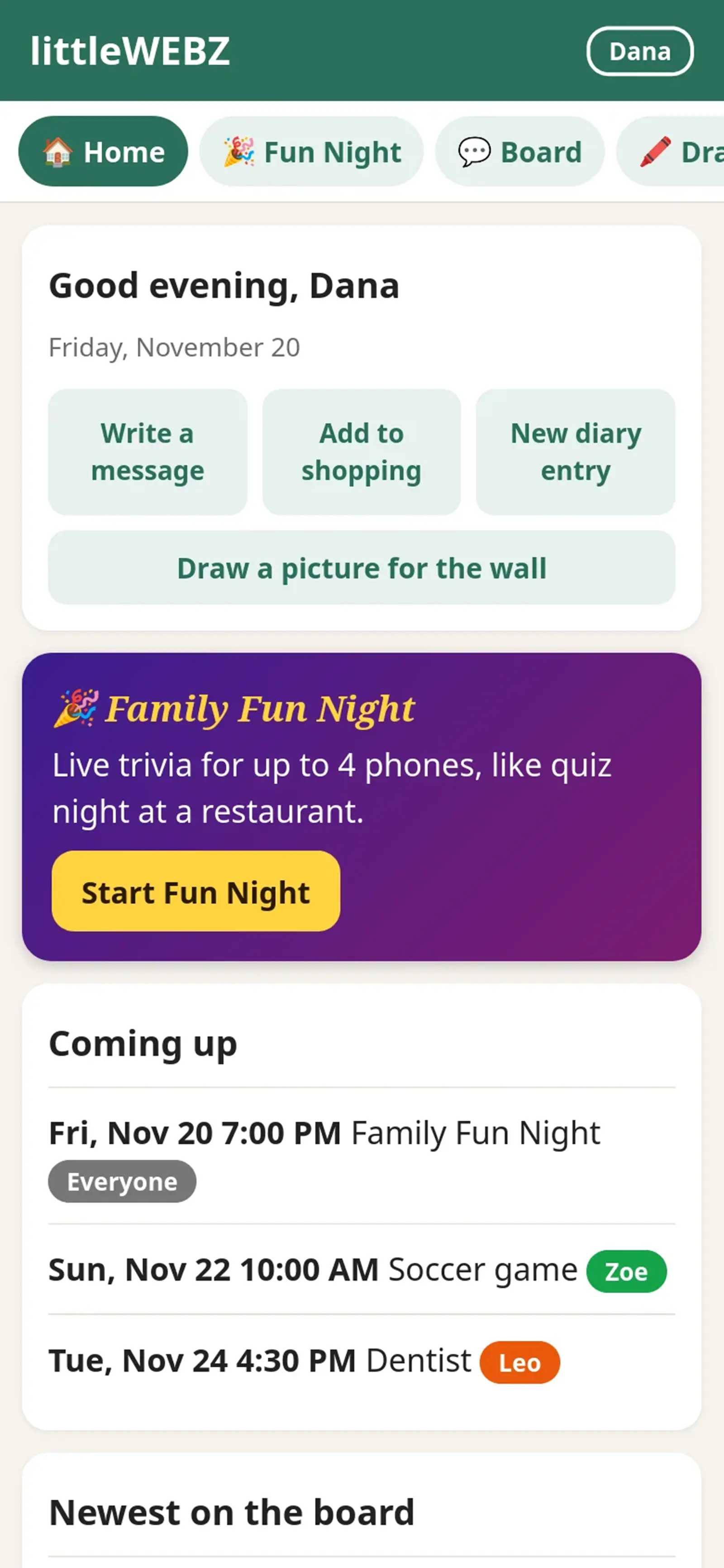
Home greets you and shows what is new: birthdays coming up, the next calendar events, the newest messages and how many things are on the shopping list. The buttons at the top are shortcuts. The purple Family Fun Night banner lets you start a trivia game, or join one that is going on.
The tabs at the top lead to every part of littleWEBZ. Slide them sideways to see them all.
This is part of the littleWEBZ Help guide. The same guide is built into every stick: tap the ❓ Help tab.
Set up littleWEBZ in a minute: plug it in, scan two codes, choose a Parent PIN. What the button and the screen mean.
littleWEBZ is a small stick that makes its own private Wi-Fi for your family. Your phones join that Wi-Fi and open the littleWEBZ website. Everything you write, draw and save stays on the memory card inside the stick. It never goes on the internet. In fact, littleWEBZ does not use the internet at all, so it works at home, in a car, at a cabin or in a hotel.
Getting started
Plug in the stick. Any USB charger, power bank or computer USB port works. The screen says "littleWEBZ", then shows two square codes (QR codes) for one minute.
Join its Wi-Fi. Open your phone's camera and point it at the left code ("1 join Wi-Fi"). Tap the message that pops up. Your phone joins the littleWEBZ Wi-Fi.
You can also join by hand: the Wi-Fi name and password are written under the left code. Each stick has its own password.
Open littleWEBZ. Point the camera at the right code ("2 open hub"), or type 192.168.4.1 in your web browser. (http://little.webz also works if you type the "http://" part.)
A parent chooses the Parent PIN. The very first time, littleWEBZ asks for a Parent PIN: 6 numbers that only the parents know. See The Parent PIN.
Add yourself. Type your name and pick a color. Each phone remembers who uses it.
Your phone may say "No internet" on this Wi-Fi. That is normal: littleWEBZ works without the internet. If your phone asks, choose to stay connected.
Missed the codes? Press the button on the stick once. The codes come back for one minute.
Up to 10 phones can be on the littleWEBZ Wi-Fi at the same time.
The button
The stick has one button on its side.
What you do
What happens
Press once
Shows the Wi-Fi codes for one minute (press again to hide them). If the screen says "PRESS:", this press says yes to that request instead, for example a new Wi-Fi name or a PIN reset (a parent asks for those with the Parent PIN).
Hold 3 seconds
Turns the stick into the Signal Finder. Hold 3 seconds again to come back.
Do not hold the button while you plug the stick in. That starts a special mode for loading new software. If it happens, unplug the stick and plug it in again without touching the button.
The stick's screen
Two eyes: littleWEBZ is on and ready. Below them you see the Wi-Fi name, and how many phones are connected (or the address 192.168.4.1 when none are).
"PRESS: ..." in yellow: someone asked for something that needs a yes from the stick. Press the button within one minute to say yes. If you do nothing, nothing changes.
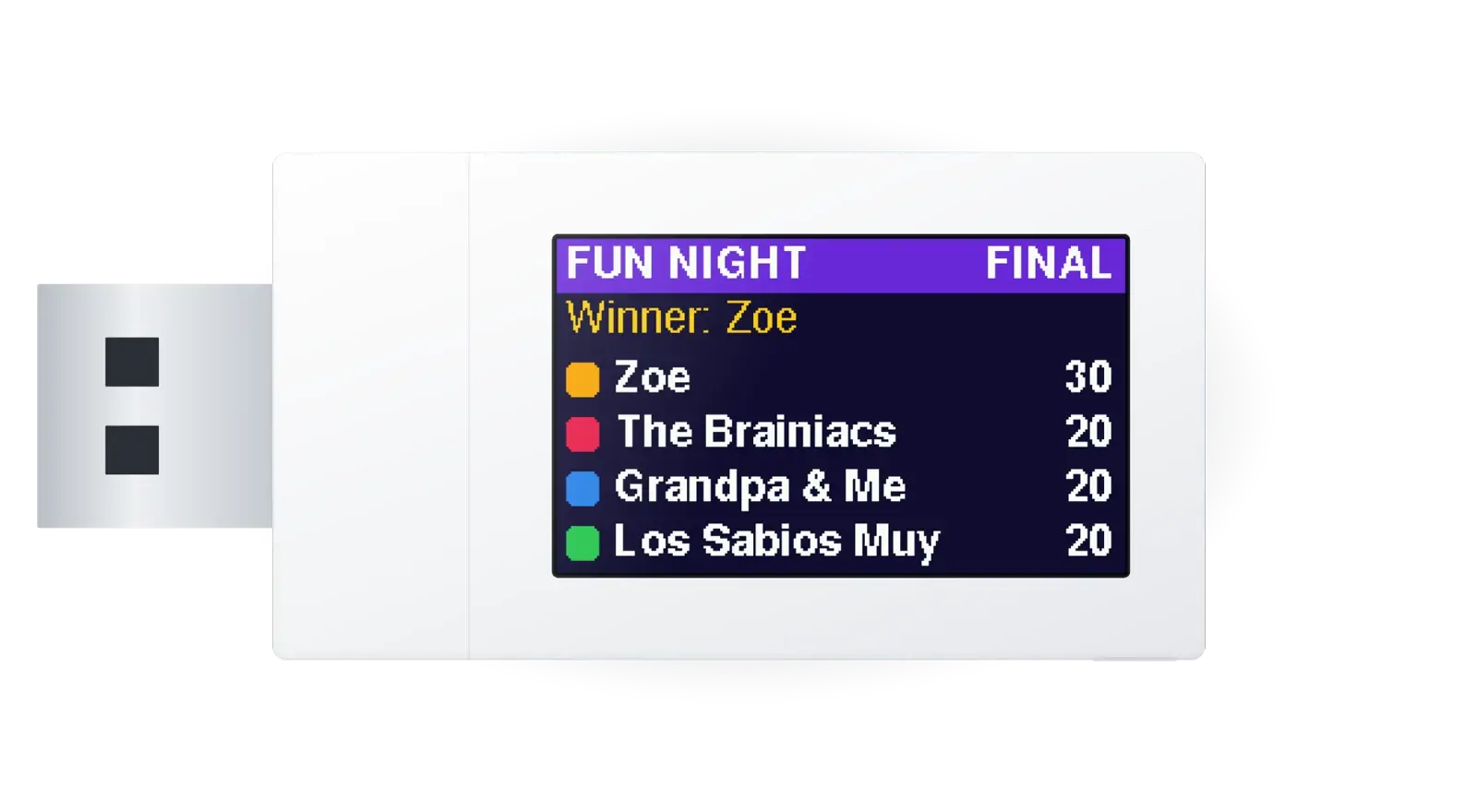
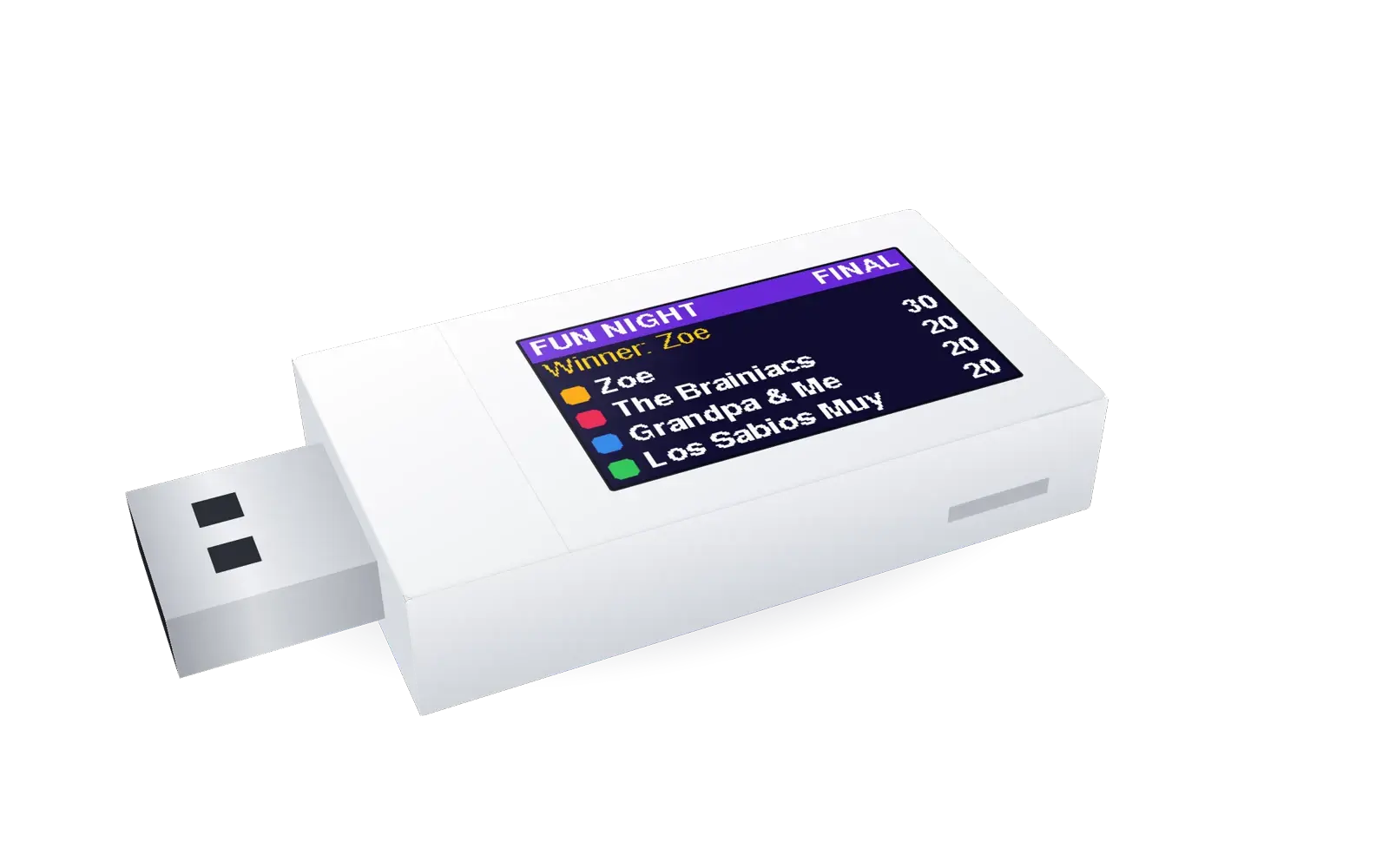
"FUN NIGHT": a trivia game is on. The screen shows JOIN NOW while teams join, then the round, the seconds left, a green dot for each team that has answered, the right answer letter, the scores, PAUSED when the host pauses, and the winner at the end.
"Copying files": new content is being put on the card from a computer. Phones see "littleWEBZ is busy" until it is done.
"memory card missing": the card is loose or out. Push it in until it clicks. littleWEBZ finds it again by itself.
This is part of the littleWEBZ Help guide. The same guide is built into every stick: tap the ❓ Help tab.